

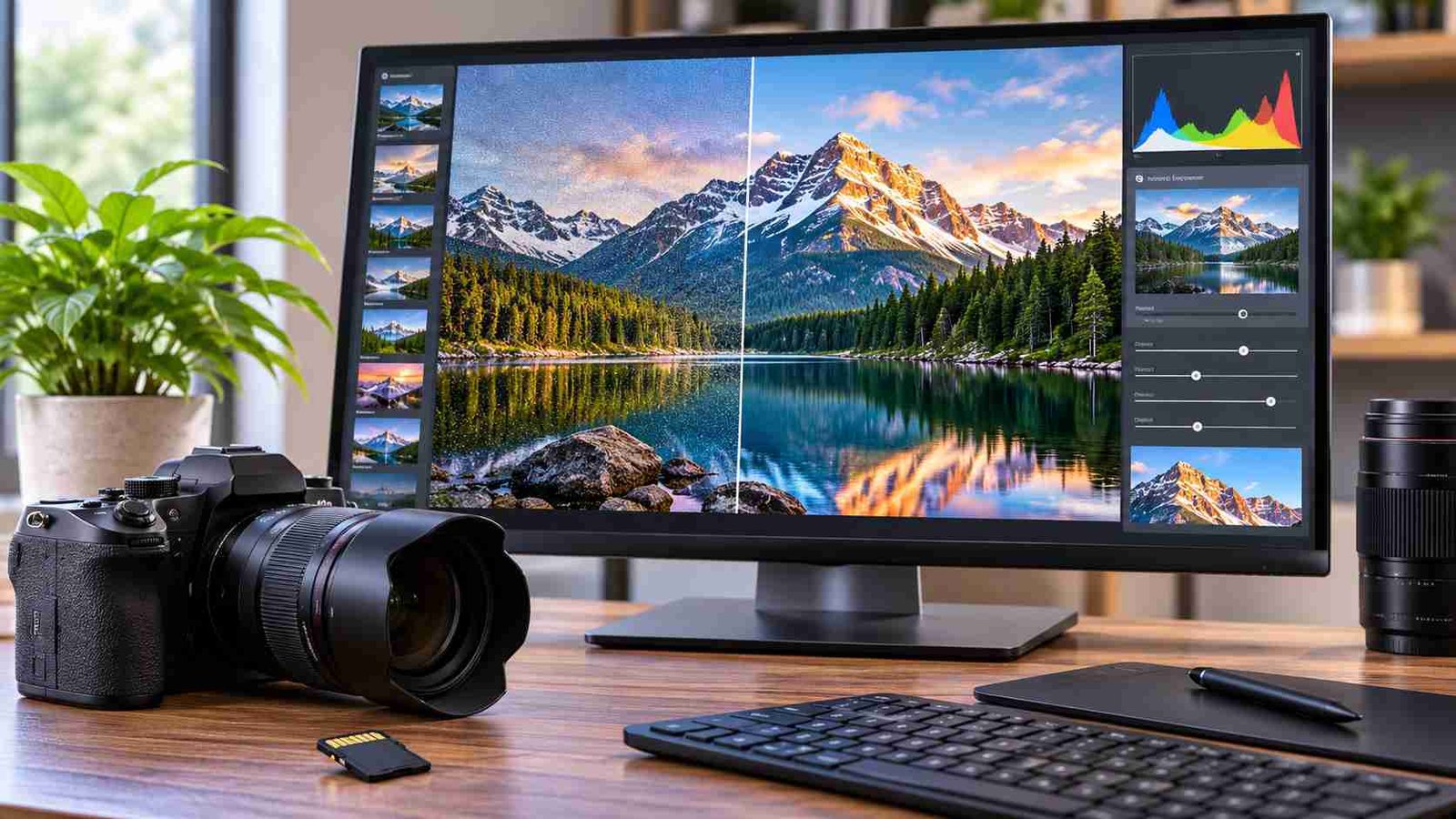
ON1 Photo RAW builds AI tools such as NoNoise AI, Tack Sharp AI, Generative Erase, and AI masking into its RAW processor, so noise reduction and cleanup happen before export. For generative edits after export, the Adobe Firefly AI photo editor changes backgrounds, objects, or lighting in the developed JPG, PNG, or WebP file from a text prompt.
This guide is for photographers who shoot RAW and want to know which AI editing tools work inside that workflow, as plugins, built-in features, or a final step after export.
How Does a Photo AI RAW Workflow Plugin Fit Into Your Editing?
Adobe Lightroom with Firefly-powered Generative Remove, ON1 Photo RAW, Topaz Photo, DxO PureRAW, and DxO PhotoLab all add AI to a RAW workflow, either built in or as plugins. A photo AI RAW workflow plugin sends the original RAW file from a host editor, such as Lightroom Classic or Photoshop, to an AI tool for noise reduction, sharpening, or detail recovery, then returns a new DNG file. Because a DNG keeps RAW-style data, you can keep adjusting exposure, color, and masks afterward. Topaz Photo, the subscription app that replaced Topaz Photo AI, returns a DNG when it receives a RAW file through its Lightroom Classic RAW plugin. DxO PureRAW pre-processes RAW files into corrected DNGs. ON1 Photo RAW skips the round trip by running its AI tools inside its own RAW editor.
| Platform | Best For | Key Details |
| Adobe Lightroom and Firefly | Adobe users who want AI cleanup on RAW files plus generative edits after export | Generative Remove, powered by Firefly, works non-destructively on RAW and non-RAW photos in Lightroom, Lightroom Classic, and Camera Raw; the Firefly AI photo editor handles exported JPG, PNG, and WebP files up to 100 MB |
| ON1 Photo RAW | An all-in-one RAW editor with AI built in | NoNoise AI, Tack Sharp AI, Generative Erase, Resize AI, Sky Swap AI; one-time purchase or subscription; Photoshop and Lightroom plugin support in Photo RAW MAX |
| Topaz Photo | Adding AI denoise and sharpening to an existing editor | Subscription only; standalone or plugin for Photoshop, Lightroom Classic, Capture One, Apple Photos, and Affinity Photo; DNG output for RAW inputs |
| DxO PureRAW | Cleaning RAW files before editing anywhere else | Pre-processes RAW files into corrected DNGs with DeepPRIME denoising; also works as a Photoshop Smart Filter |
| DxO PhotoLab | Maximum RAW image quality in a full editor | DeepPRIME XD3 denoising and demosaicing, AI masks, DNG export with corrections applied; one-time license |
ON1 Photo RAW’s AI features cover most RAW workflow steps inside one app. The latest release adds a new RAW processing engine, a rebuilt NoNoise AI with models tuned for wildlife, portraits, astrophotography, and scanned film, and a sharper Tack Sharp deblurring engine. Generative Erase removes distractions, Resize AI enlarges images, and Sky Swap AI replaces skies. Photo RAW MAX adds an AI Culling Assistant that groups similar shots and flags closed eyes and out-of-focus frames, plus cloud AI rendering for Generative Erase. ON1 runs on Mac and Windows.
Topaz Photo’s RAW handling has limits worth knowing before you build a workflow around it. Its DNG output is reserved for RAW inputs, and non-RAW files are saved as TIFF instead. If Topaz Photo does not yet support your camera’s RAW format, Topaz recommends converting the file to DNG first. Topaz reads the original RAW data, not your Lightroom adjustments, so send unedited RAW files and finish color and tone after the DNG returns.
A RAW workflow that ends in Adobe Firefly usually runs in this order:
- Denoise the RAW file first, in Lightroom, ON1, DxO, or Topaz.
- Remove distractions next. Adobe recommends running Denoise before Lightroom’s Generative Remove to avoid leftover ghosting.
- Finish exposure, color, and masking edits on the RAW or DNG file.
- Export a JPG, PNG, or WebP file of at least 512 by 512 pixels.
- Open the export in the Firefly AI photo editor for prompt-based edits such as a new background, added objects, or a lighting change, then download the result.
How Good Is DxO PhotoLab’s AI Denoising for RAW Files?
DxO PhotoLab’s AI denoising for RAW files is DeepPRIME XD3, which removes noise and demosaics the image in the same step, before the RAW data becomes a regular image. Doing both at once lets PhotoLab recover fine detail from high-ISO shots that a denoiser working on an already-converted file cannot see. DeepPRIME XD3 now supports both standard Bayer sensors and Fujifilm X-Trans sensors. PhotoLab also lets you apply denoising locally through masks, and it can export a DNG with DxO’s denoising and lens corrections already applied, which other RAW editors can open and keep editing. DxO’s High-Fidelity Compression option makes those DNG files up to four times smaller. Reviewers note the processing is hardware-intensive and can take a few seconds per image even on a fast computer.
PhotoLab 10 builds on that denoising with Depth Masks that select areas by distance from the camera, AI-powered sensor dust removal at the RAW level, a single-wheel Color Grading tool, and a direct connection to Affinity for pixel-level editing. A new license costs $249.99, and upgrades from PhotoLab 8 or 9 cost $129.99, with a 30-day free trial. The full DeepPRIME toolset comes in the Elite edition.
RAW denoising options compare this way:
- DxO PhotoLab and PureRAW: DeepPRIME XD3 denoises during demosaicing and exports a corrected DNG.
- ON1 Photo RAW: NoNoise AI runs inside the RAW editor, with subject-tuned models and no export step.
- Adobe Lightroom: Denoise creates a new DNG inside Lightroom, Lightroom Classic, or Camera Raw, and pairs with Firefly-powered Generative Remove.
- Topaz Photo: RAW denoising through a Lightroom Classic plugin that returns a DNG.
Frequently Asked Questions
Can Adobe Firefly edit RAW files directly?
No. The Firefly AI photo editor accepts JPG, PNG, and WebP files up to 100 MB with a minimum size of 512 by 512 pixels, so RAW files need to be developed and exported first. Firefly technology does reach RAW files through Lightroom and Camera Raw, where Firefly-powered Generative Remove works non-destructively on RAW photos. Adobe states that Firefly models are trained on licensed content and public domain content and that Adobe does not train Firefly on user content.
Does AI denoising create a new file in a RAW workflow?
Usually, yes. Lightroom’s Denoise writes a new DNG next to the original RAW file, Topaz Photo returns a new DNG through its RAW plugin, and DxO PhotoLab and PureRAW export a corrected DNG. Each of these keeps the original RAW untouched but adds a second file to your library, so storage grows with every denoised shoot. DxO’s High-Fidelity Compression keeps its DNGs up to four times smaller, and ON1 Photo RAW applies NoNoise AI inside its own editor without a separate export step.
Which RAW AI tools are one-time purchases and which are subscriptions?
ON1 Photo RAW is sold as a one-time purchase or a subscription, and DxO PhotoLab uses a one-time license. Topaz Photo and Topaz’s other apps are subscription only, though Topaz has said earlier perpetual Photo AI licenses remain valid. Adobe Lightroom requires a Creative Cloud subscription, while the Firefly AI photo editor can be tried on a free Adobe account with free daily generations.
ON1 Photo RAW’s AI features handle denoising, sharpening, erasing, and resizing inside the RAW workflow itself, and the Adobe Firefly AI photo editor takes the finished export further with prompt-based generative edits.